
To create a Telegram channel, open the new message menu in the Telegram app, choose New Channel, type a name and add a photo and a description. The channel exists from that moment. It starts private, and one more setting makes it public, with a link that anyone can open.
This guide goes through each step, then the settings worth getting right before you invite anyone, and how to find the first subscribers without annoying people.
What a Telegram channel is
Telegram describes channels as a tool for broadcasting public messages to large audiences. Three things set a channel apart from an ordinary chat.
- Only admins post. Subscribers read. They do not write in the channel itself.
- Posts carry the channel's name. A post is signed with the name of the channel and not with the name of the person who wrote it.
- There is no ceiling. Telegram says a channel can have an unlimited number of subscribers.
Each post also sends a notification to subscribers' phones, which is why Telegram's channels page calls a channel a way to reach people directly.
A group is a different thing. In a group every member can write, and Telegram's groups page puts the limit at 200,000 members. If you want to publish to readers, you want a channel. If you want members to talk to each other, you want a group.
Decide three things before you create a Telegram channel
- The subject. One sentence that says who the channel is for and what they will get from it. If you cannot write that sentence, readers will not be able to guess it.
- The name and the link. The name is shown beside every post. The link of a public channel is its username, which Telegram's FAQ says can use the letters a to z, the digits 0 to 9 and underscores. Ordinary usernames are given on a first come, first served basis, so have two or three options ready.
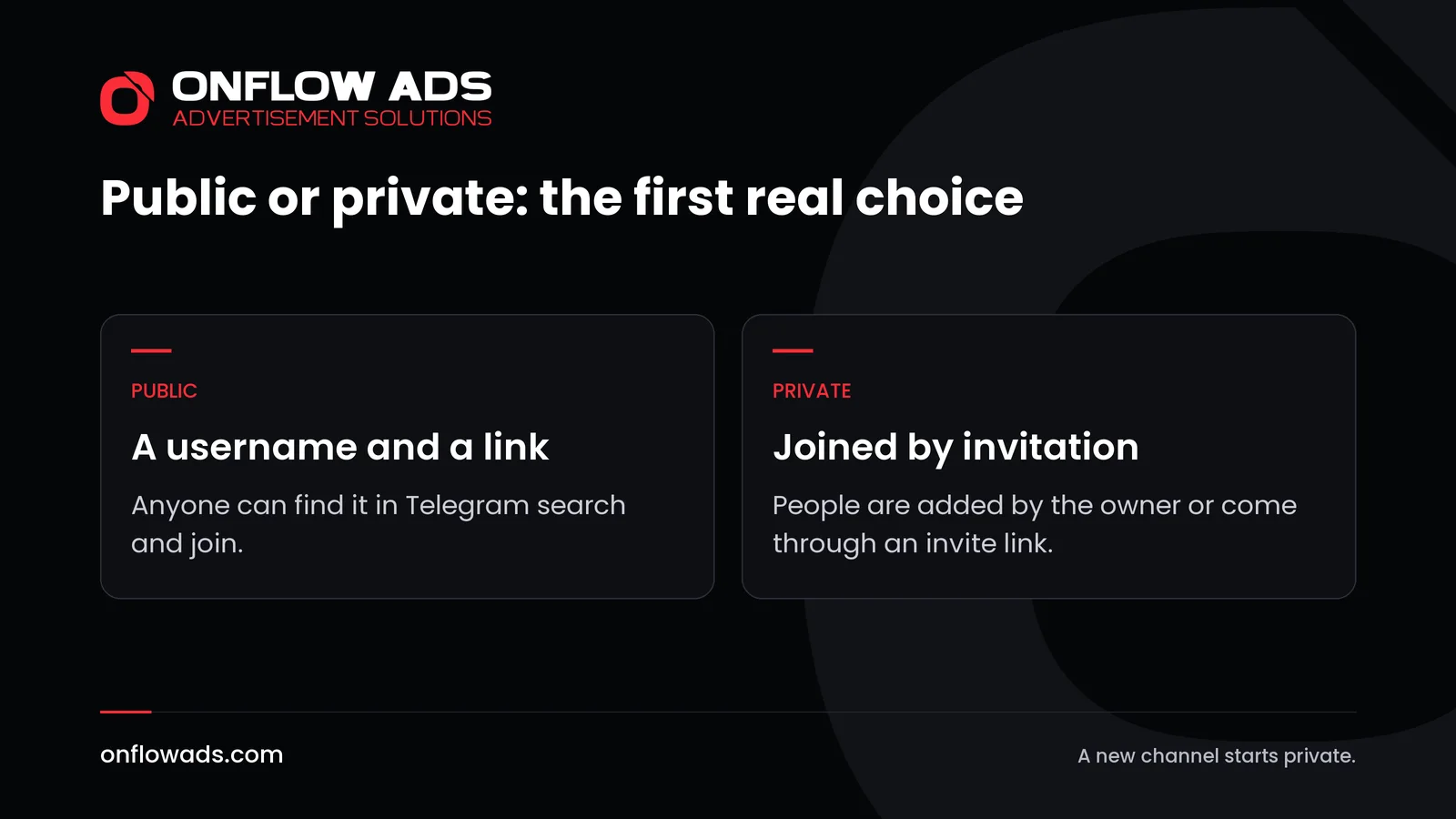
- Public or private. This decides how people can join, and whether the channel can be found at all.
| Public channel | Private channel | |
|---|---|---|
| How people join | Anyone can find it and join | Added by the owner, or through an invite link |
| Found in Telegram search | Yes | No |
| Its link | A username and a t.me link | Invite links only |
| Read without the app | Yes, in a browser | Members only |
| A good fit for | A channel that wants to grow | A closed circle, a team or paying members |
How to create a Telegram channel, step by step
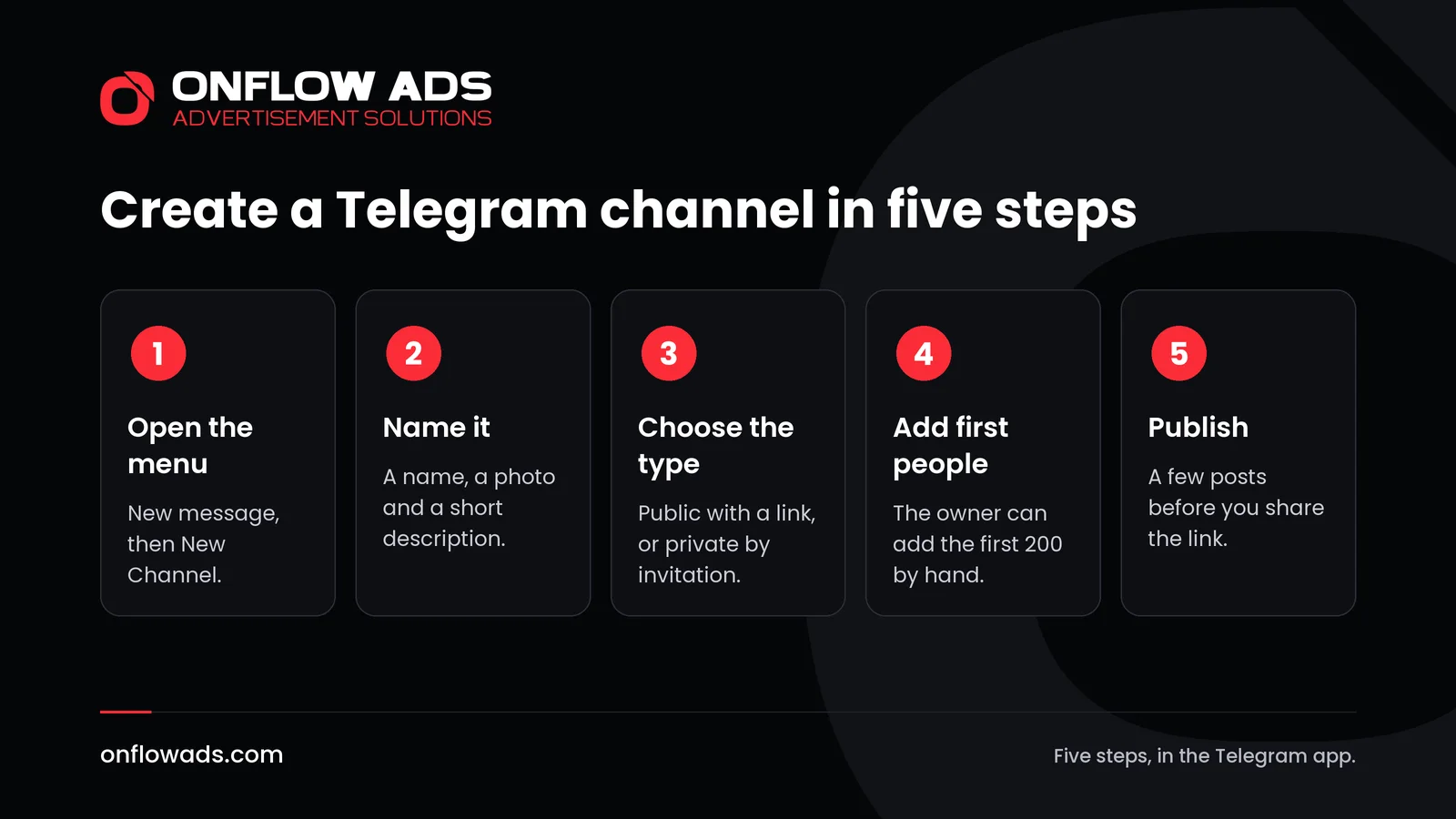
Open the new message menu
On an iPhone, tap the new message icon in the top right corner of Chats. On Android, tap the round pencil icon in the chat list.
Choose New Channel
Telegram opens an empty profile for the channel.
Add a name, a photo and a description
The name is what subscribers see beside every post. The description is the few lines a visitor reads before deciding to join.
Choose public or private
A new channel starts private. To make it public, open its profile, edit it and change the channel type to public. Telegram then asks for the link: the username that follows t.me/.
Add the first people
Telegram lets the owner add the first 200 subscribers directly. Add the people who expect it, not your whole contact list.
Publish the first posts
Write a few posts before you share the link, so that a visitor can see at once what the channel is about.
Set the channel up before you invite anyone
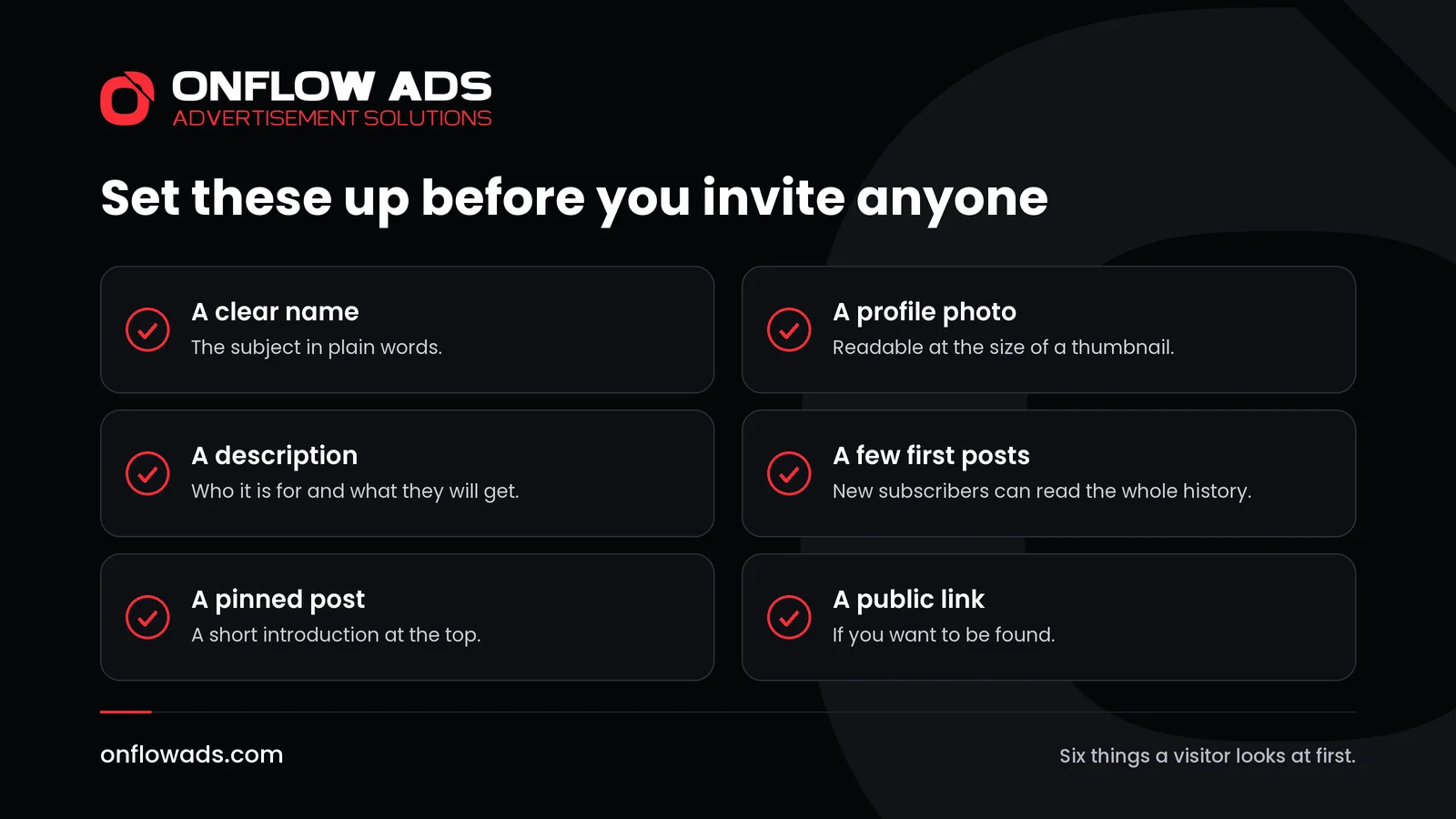
A visitor decides in a few seconds. These settings are what that visitor sees.
- The description. Say what the channel covers, who it is for and how often you post. Telegram's own advertising rules will not promote a channel unless it has both a profile image and a complete description, which is a fair minimum for any channel.
- A pinned post. A pinned message appears in a banner at the top of the channel. Use it for a short introduction and links to your best posts.
- Comments. Add a discussion group from the channel's info page and every post gets a comment button. Leave it off if nobody will have time to read the replies.
- Reactions. You choose which reactions readers can use.
- More admins. You can appoint admins and decide what each one may do: add subscribers, manage messages, edit the channel's details or add other admins. Give each person only what the job needs.
Make the channel easy to find
A public channel can be found in two places. Inside Telegram, anyone can find it in search and join. Outside Telegram, its posts can be read in a browser without an account, and Telegram says the contents of public channels are indexed by search engines.
Both places show the same few things: the name, the photo and the description. Put the subject there in the words a reader would use, not in a slogan. Every post in a public channel also has its own t.me link, so a good post can be shared on its own and bring people back to the channel.
Find your first subscribers
- Add the people who asked for it. This is what the first 200 direct additions are for.
- Share the link where people already follow you: your website, your profiles on other networks, your email signature. Telegram's own advice for a public channel is to post its link on social networks.
- Make a separate invite link for each place you share, so you can see which one works. Telegram shows who joined through each link.
- Swap posts with a channel on your subject. Our guide to Telegram cross-promotion explains how two channels recommend each other for free.
- Work through the other methods that need no budget in how to promote a Telegram channel for free.
Connect the channel to Onflow Ads
Once the channel is public, it can be added to Onflow Ads, where channels swap promo posts for free, exchange ads and sell sponsored posts. Adding a channel works like this.
- You paste the channel's public link or its username. Private channels, invite links, groups and personal accounts are not accepted.
- You add the Onflow Ads bot as an administrator that can post and delete messages, and your own connected Telegram account has to be an administrator too. That is how ownership is proved.
- The channel's name, description, photo, subscriber count and average views are then read from Telegram, so there is nothing to type in.
- It needs a verified email address and no paid plan.
Each part of the platform has its own enrolment after that, so adding a channel commits you to nothing.
Mistakes to avoid in the first week
- Sharing the link before there is anything to read.
- Leaving the channel private when you want to be found.
- Adding people who did not ask to be added.
- Giving every helper full admin rights.
- Writing a description that says nothing about the subject.
- Going quiet for weeks after the first burst of posts.
Growing a channel is one stage of the whole job. Our complete guide to Telegram marketing covers every stage, from the first post to the numbers that show what worked.
Frequently asked questions
How do I create a Telegram channel?
Open the new message menu in the Telegram app and choose New Channel. Give the channel a name, a photo and a description, then decide whether it is public or private.
How many subscribers can a Telegram channel have?
Telegram sets no limit. Its FAQ says channels can have an unlimited number of subscribers.
Can I make a private channel public later?
Yes. Telegram says newly created channels start as private, and that you can edit a channel's profile to make it public.
Can subscribers see who runs a channel?
No. Posts are signed with the channel's name, and Telegram says the subscriber list is visible only to the owner and the admins. Subscribers cannot see who else has joined or which accounts manage the channel.
What is the difference between a channel and a group?
In a channel only admins post and everyone else reads. In a group every member can write. Telegram allows a group up to 200,000 members and sets no limit for a channel.


Comments
Nobody has commented yet.